> For the complete documentation index, see [llms.txt](https://docs.wpvotingcontest.com/llms.txt). Markdown versions of documentation pages are available by appending `.md` to page URLs; this page is available as [Markdown](https://docs.wpvotingcontest.com/technical-documentation/general-knowledge-base/index/contest-category-menu/color-settings-tab.md).
# Color Settings Tab
#### Navigation: Contest->Contest Category->Color Settings
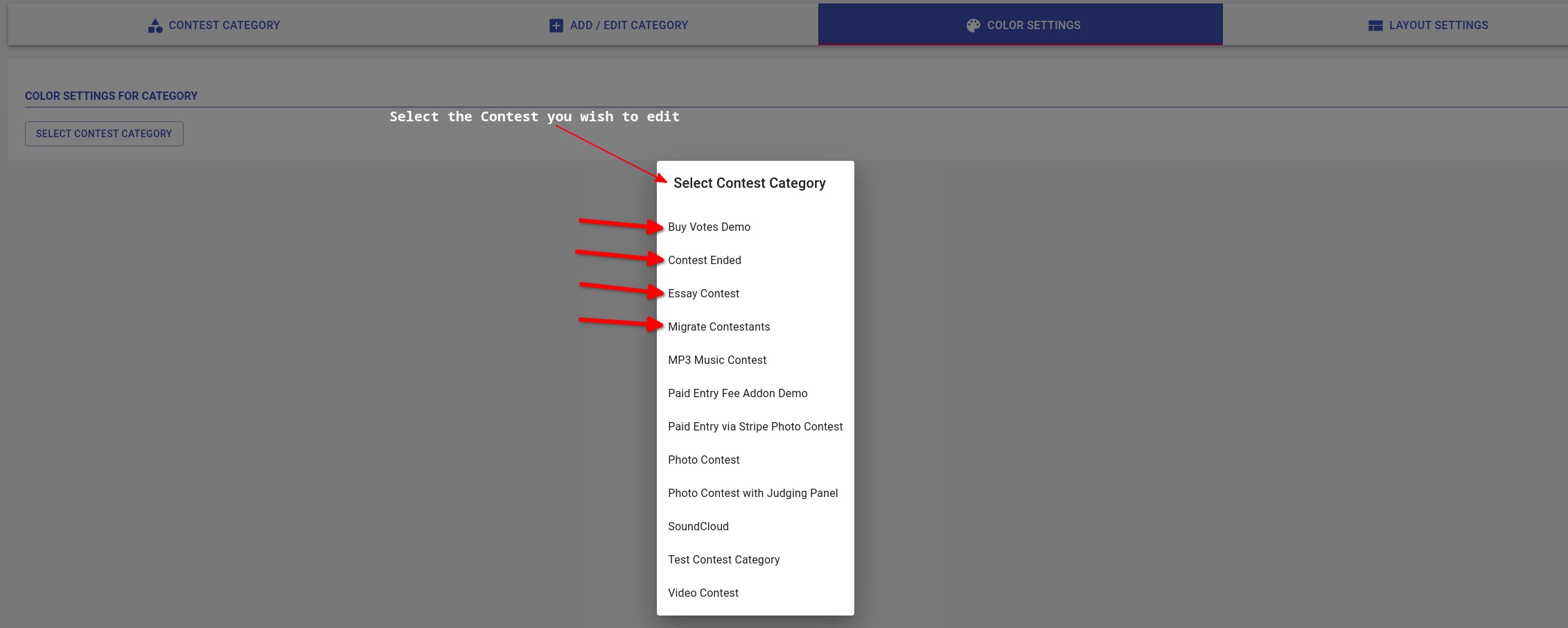
This is the menu where you can alter contest specific settings to override the [global defaults](/technical-documentation/general-knowledge-base/index/settings-menu/global-color-settings.md). Click 'Select Contest Category' as seen below.
Select Contest Category
Select any particular **existing** contest from the list of your contests.
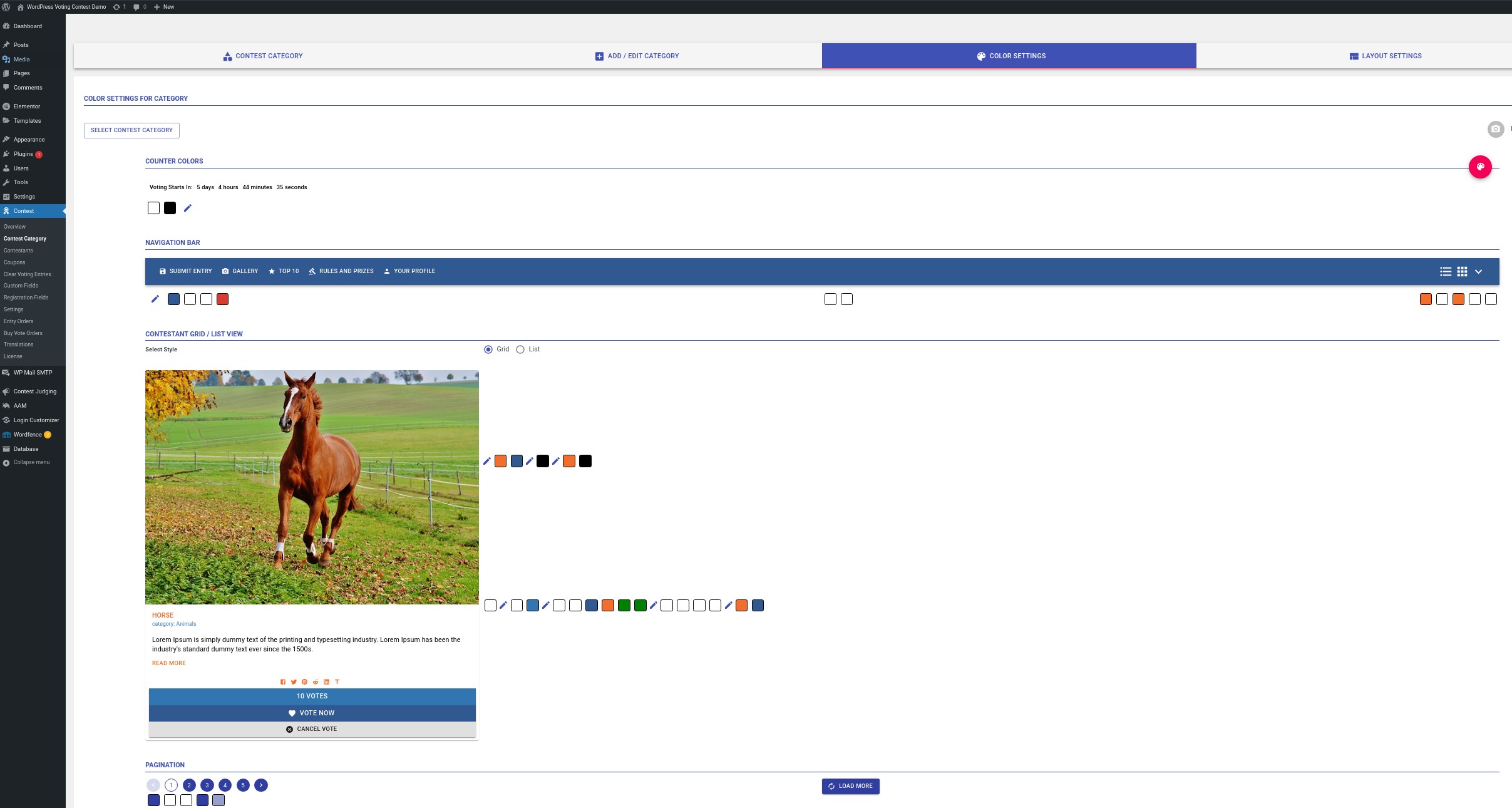
The menu looks identical and functions identically to selecting colors in the [global default settings menu](/technical-documentation/general-knowledge-base/index/settings-menu/global-color-settings.md). Select any color and save your changes here for them to be reflected on your chosen, now unique, contest.